Negative inversion without a baked-in look.
Argent is a Mac app that opens camera-scanned RAW film negatives directly and turns them into neutral positives. It runs on its own without other photo software, and your photos never leave your Mac.
Try every feature on your own scans for 7 days. Start the trial in the app with your email and a 6-digit code; no card needed.
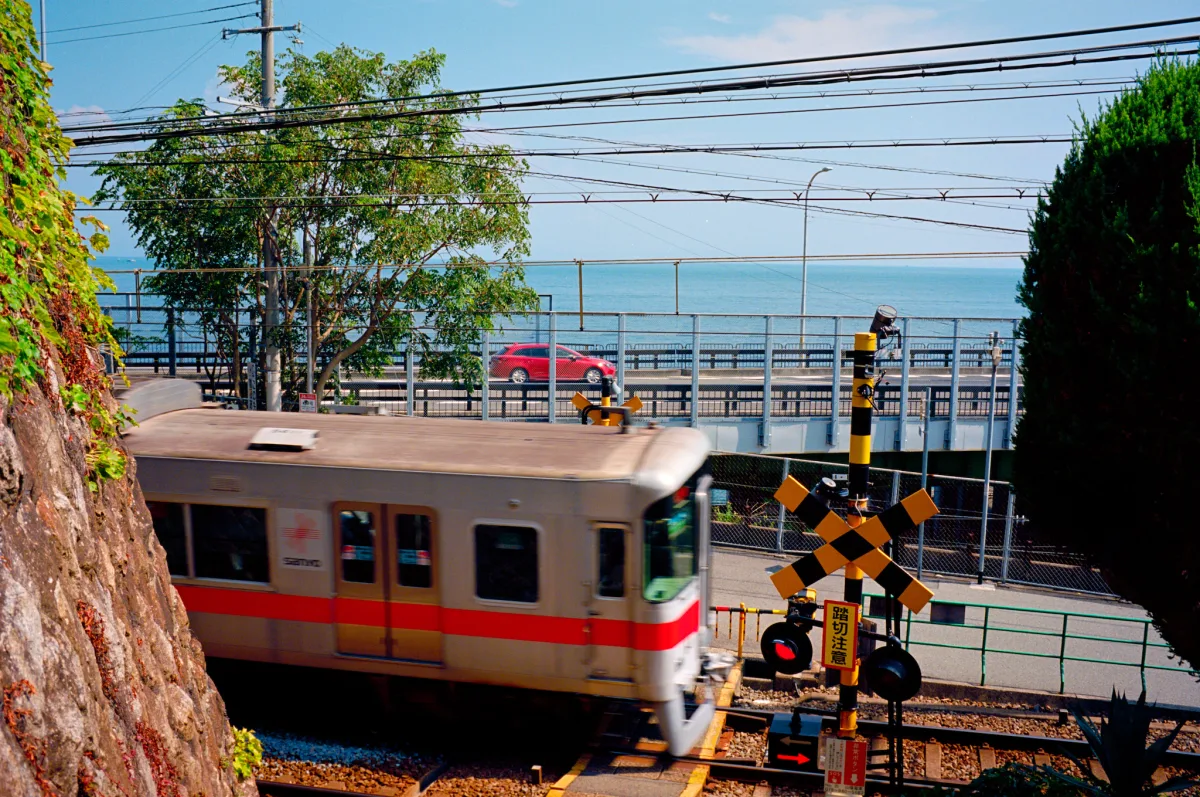
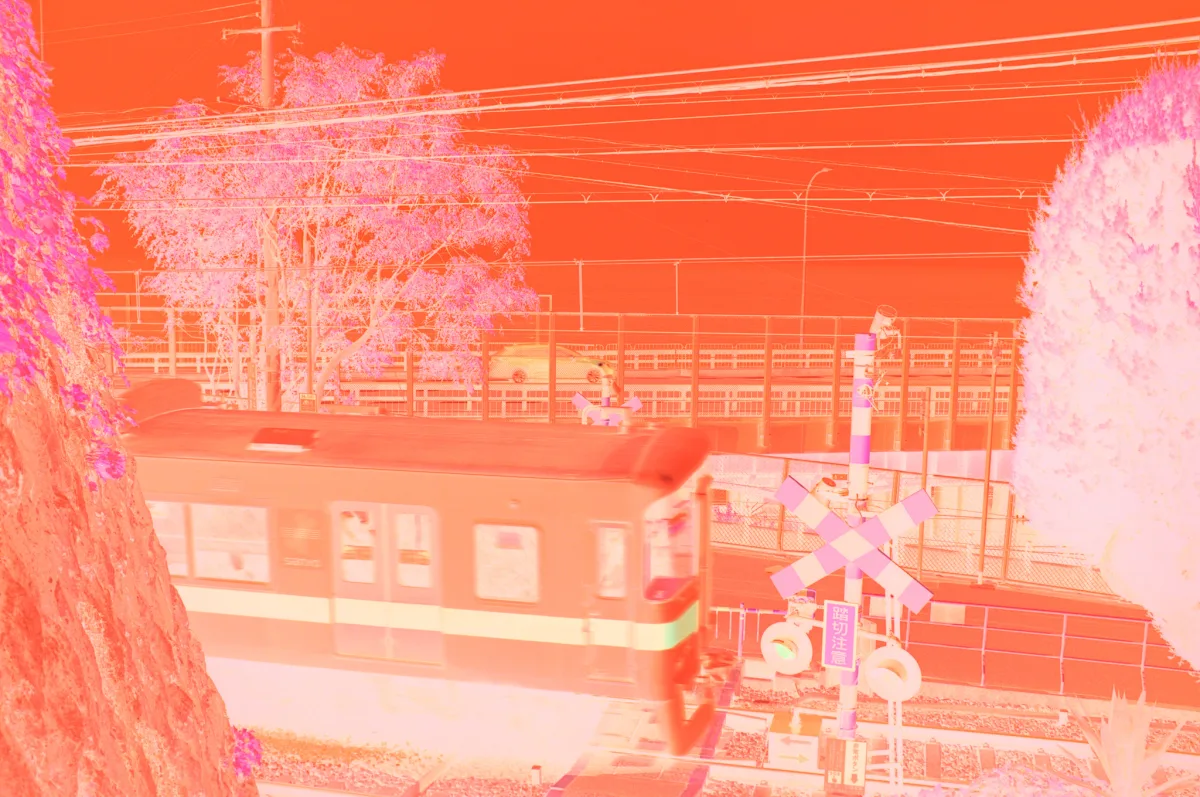
NEUTRAL
Inversion adds no look of its own.
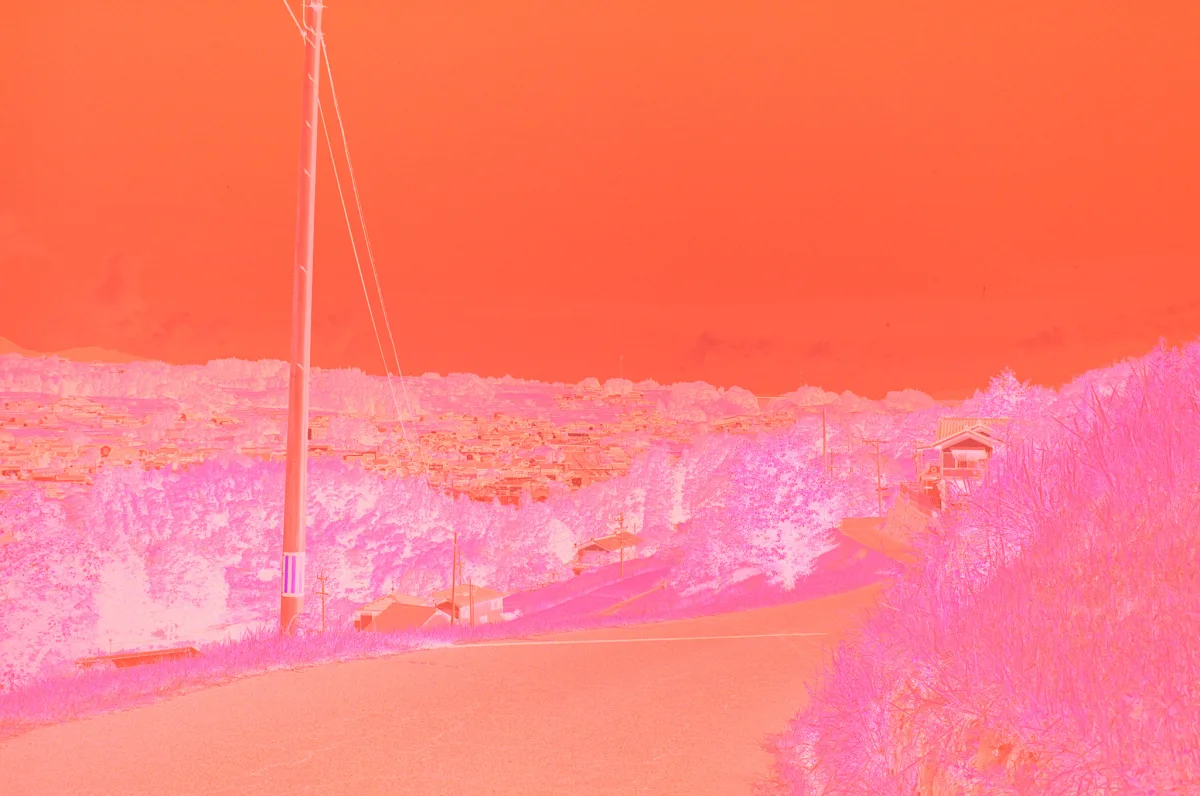
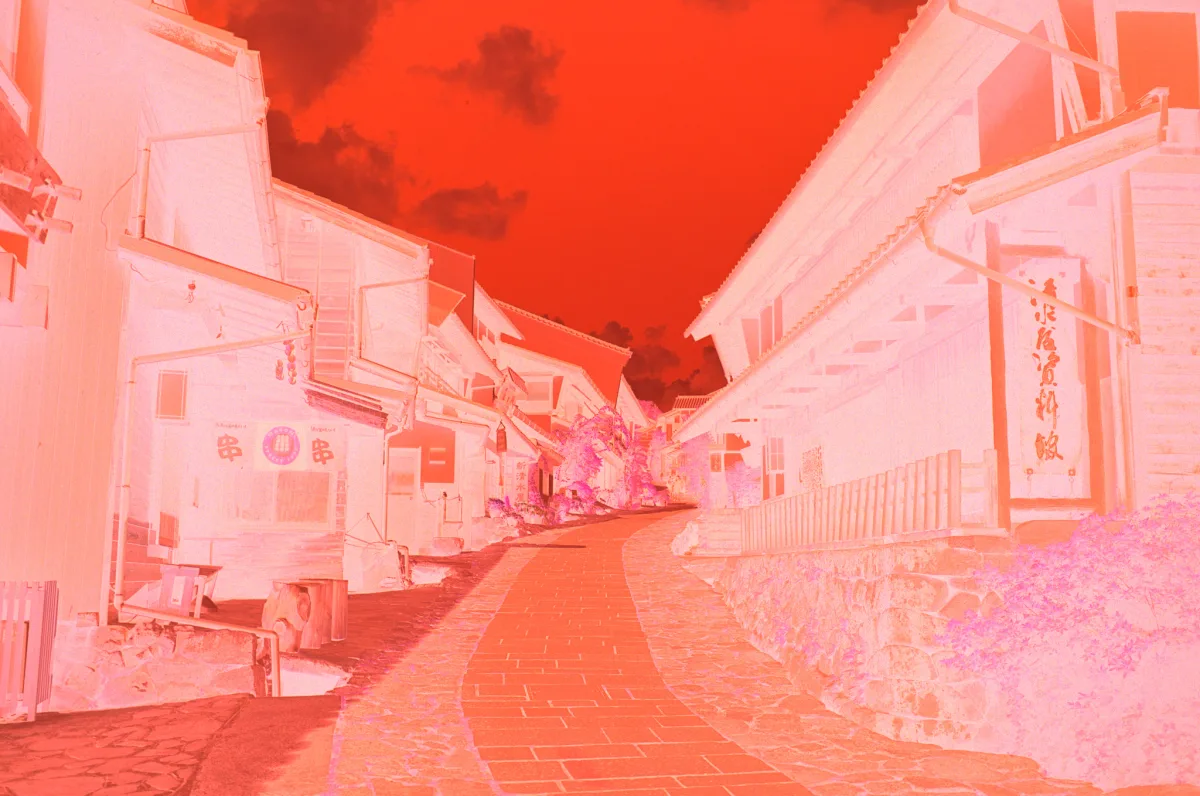
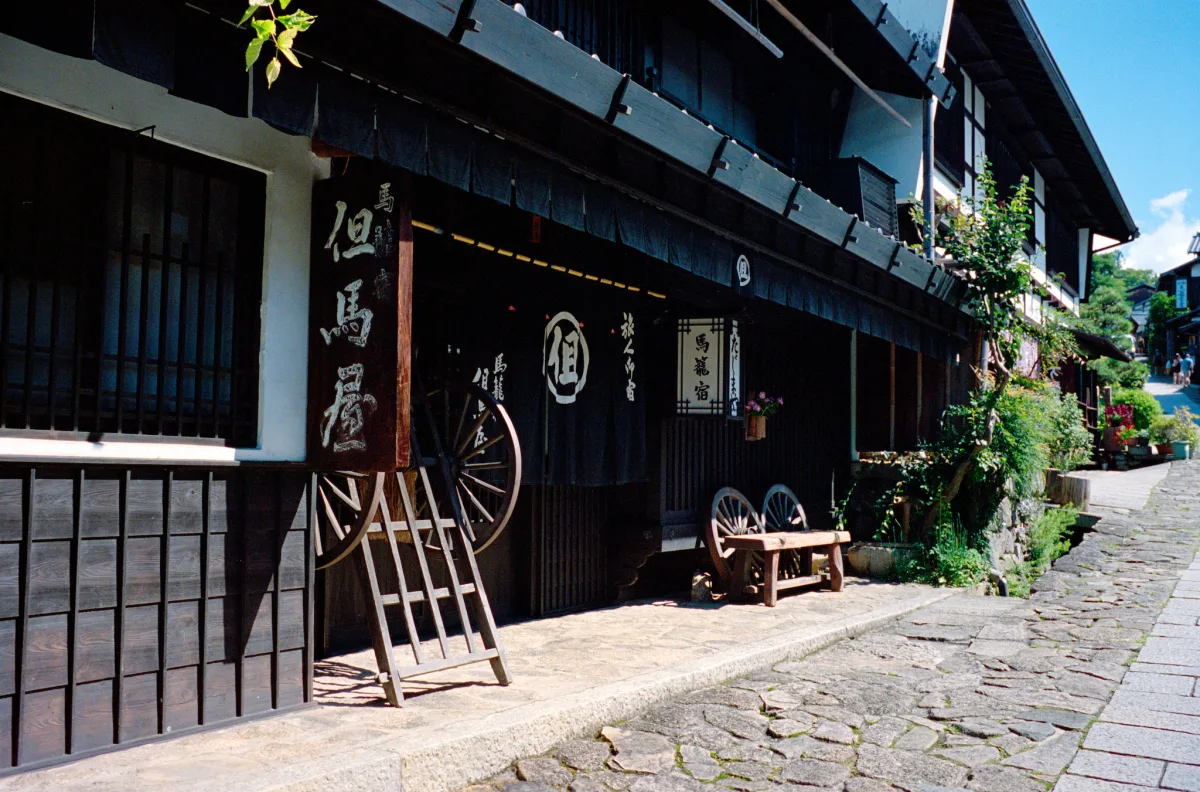
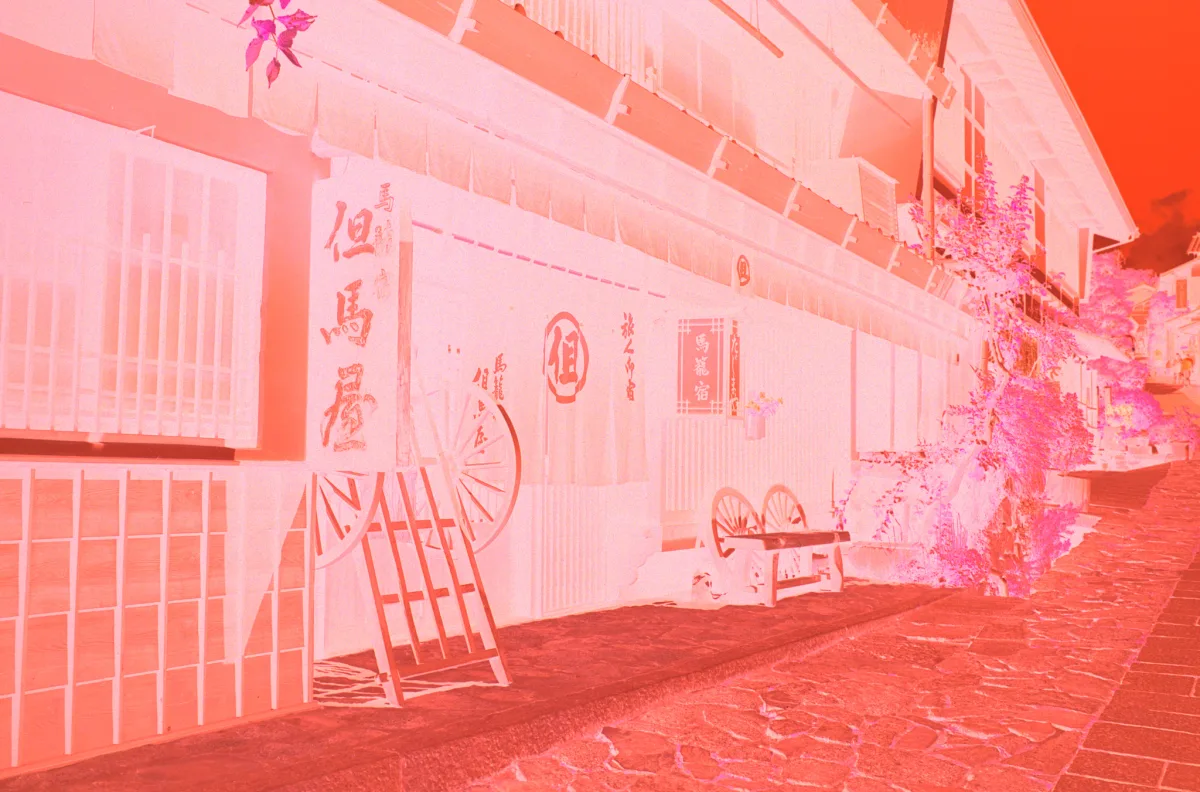
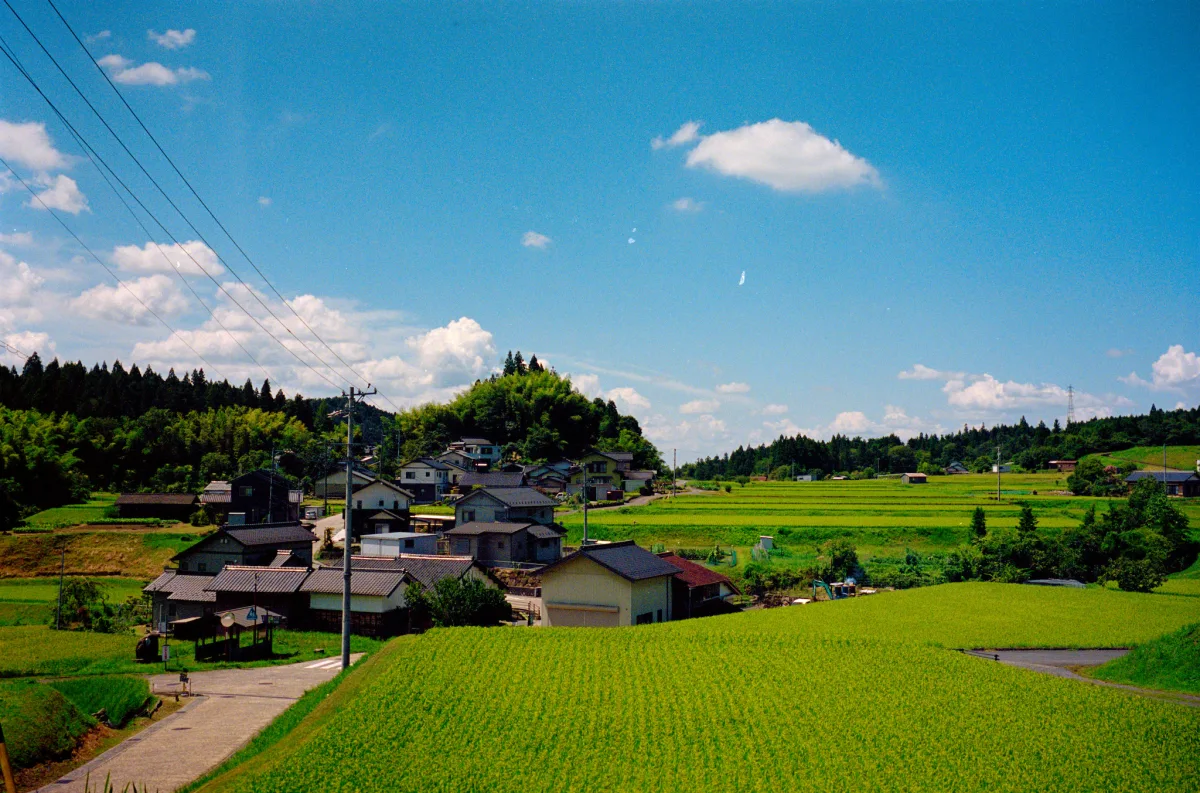
A colour cast baked into the inversion wastes time before editing even starts. Argent keeps the inversion and white balance neutral, with no look of its own. From that clean starting point, grade the colour however you like.
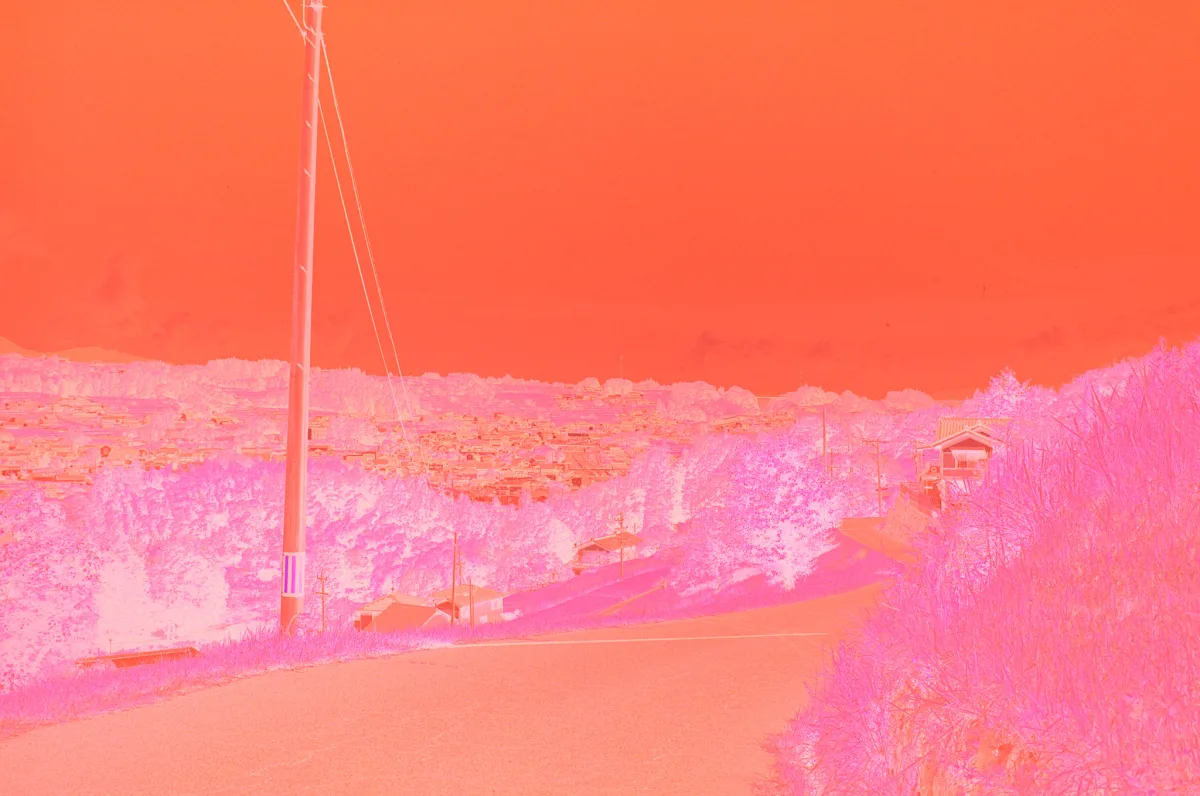
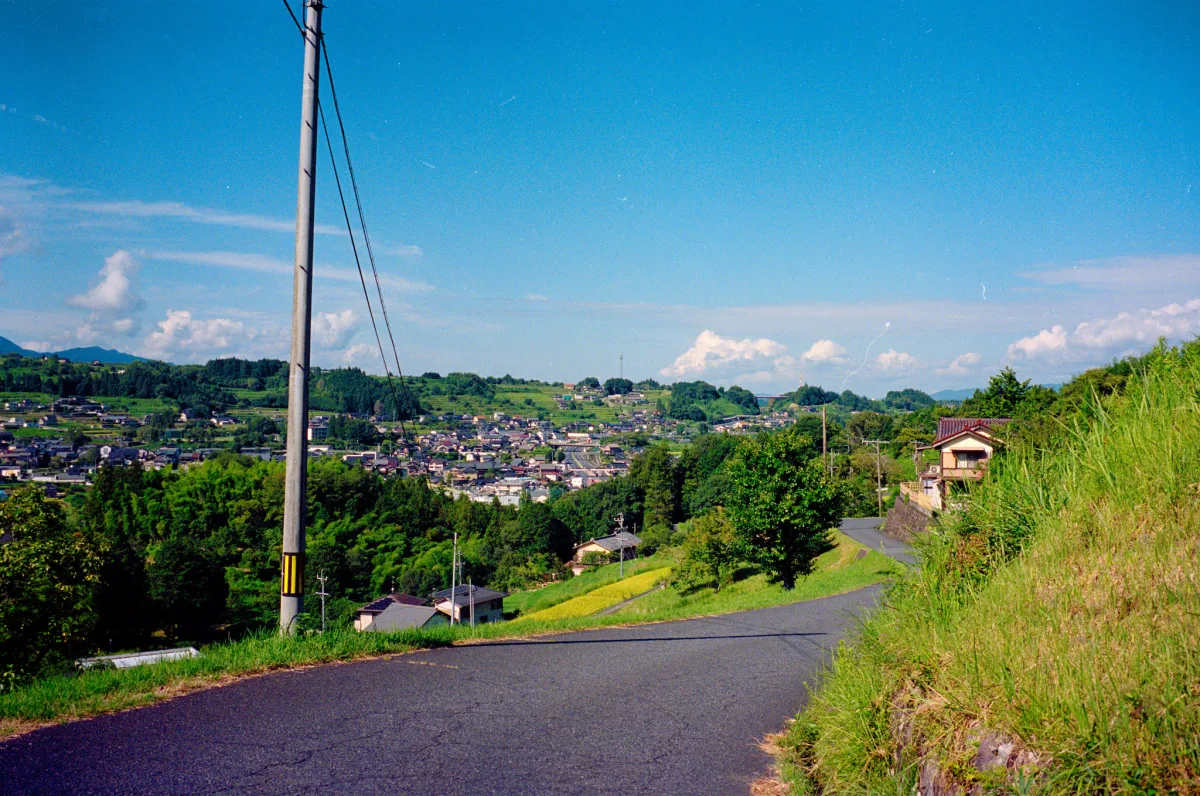
ROLL
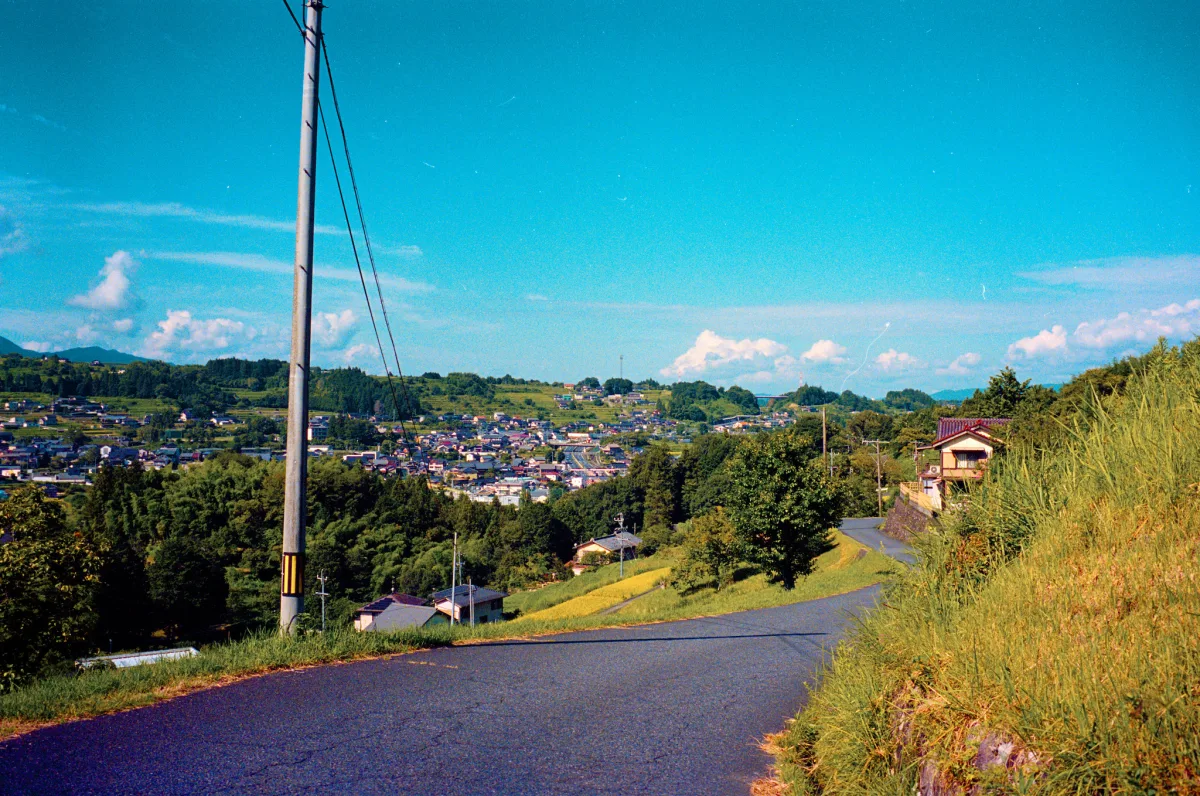
Consistent from first frame to last.
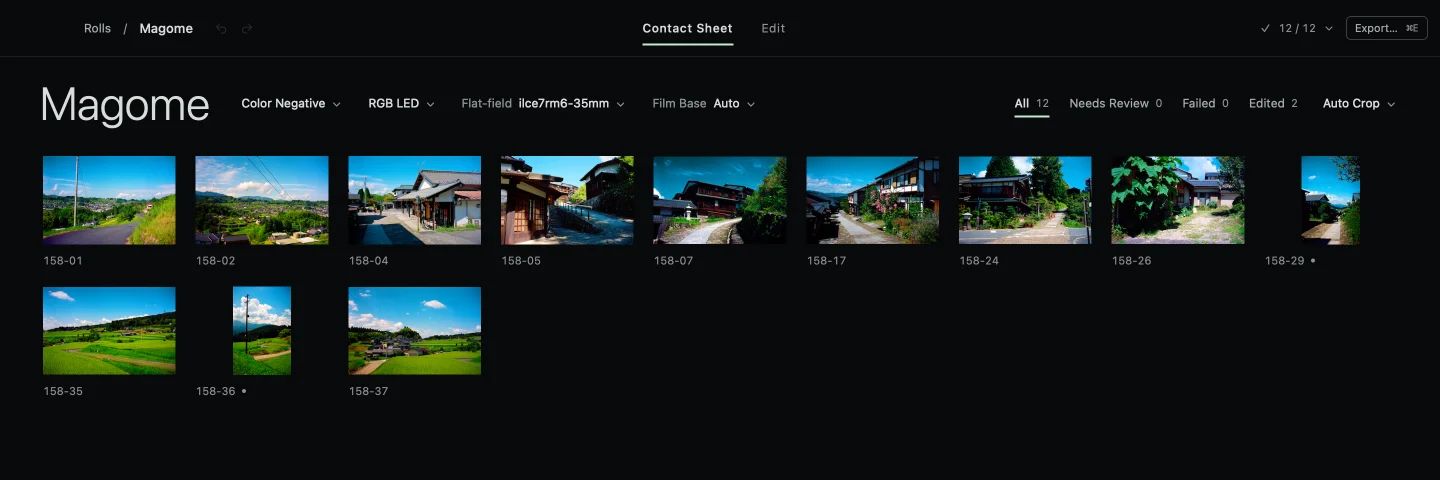
Inverting frame by frame lets colour and brightness drift across a roll. Argent treats each folder as a roll and reads all frames together before inverting. The film itself (Film Base and colour-layer contrast) is measured once per roll; brightness and colour cast are still handled frame by frame. White balance comes from the Film Base, measured automatically or sampled manually, so your camera's white balance at scan time doesn't matter.
AUTO CROP
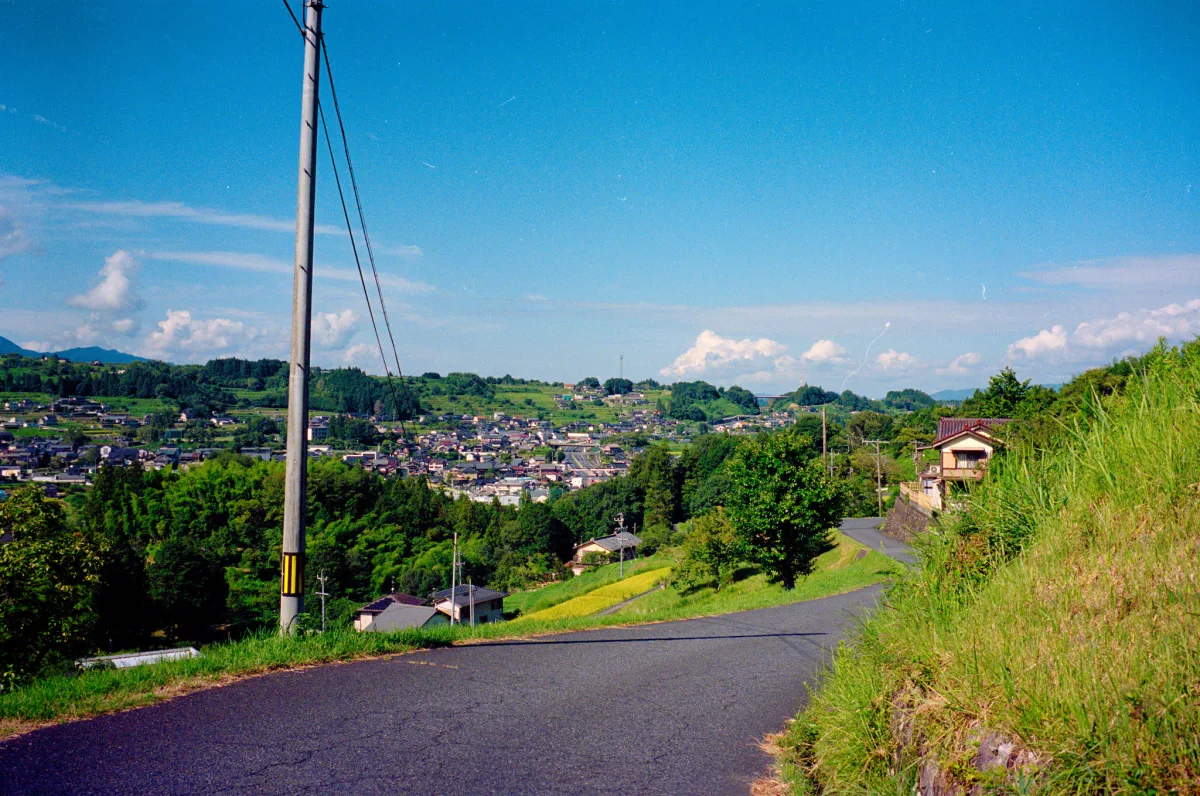
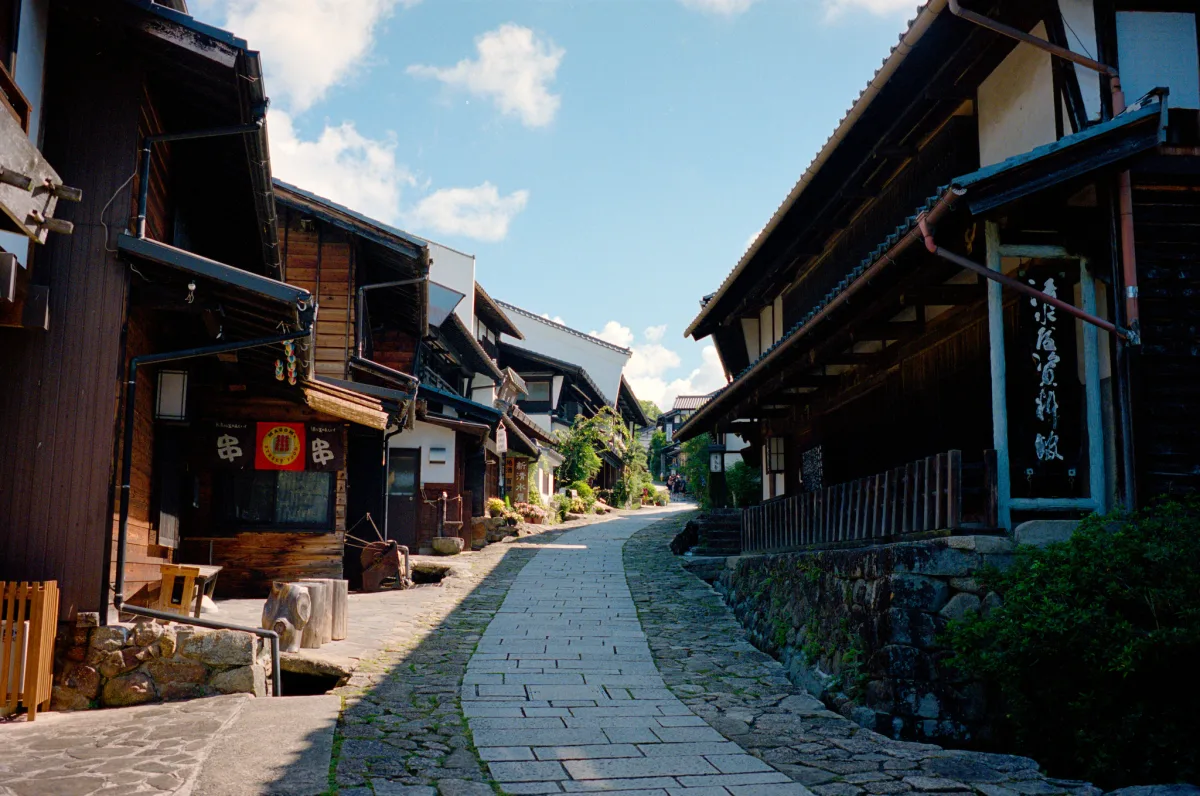
Crop and straighten a roll in one pass.
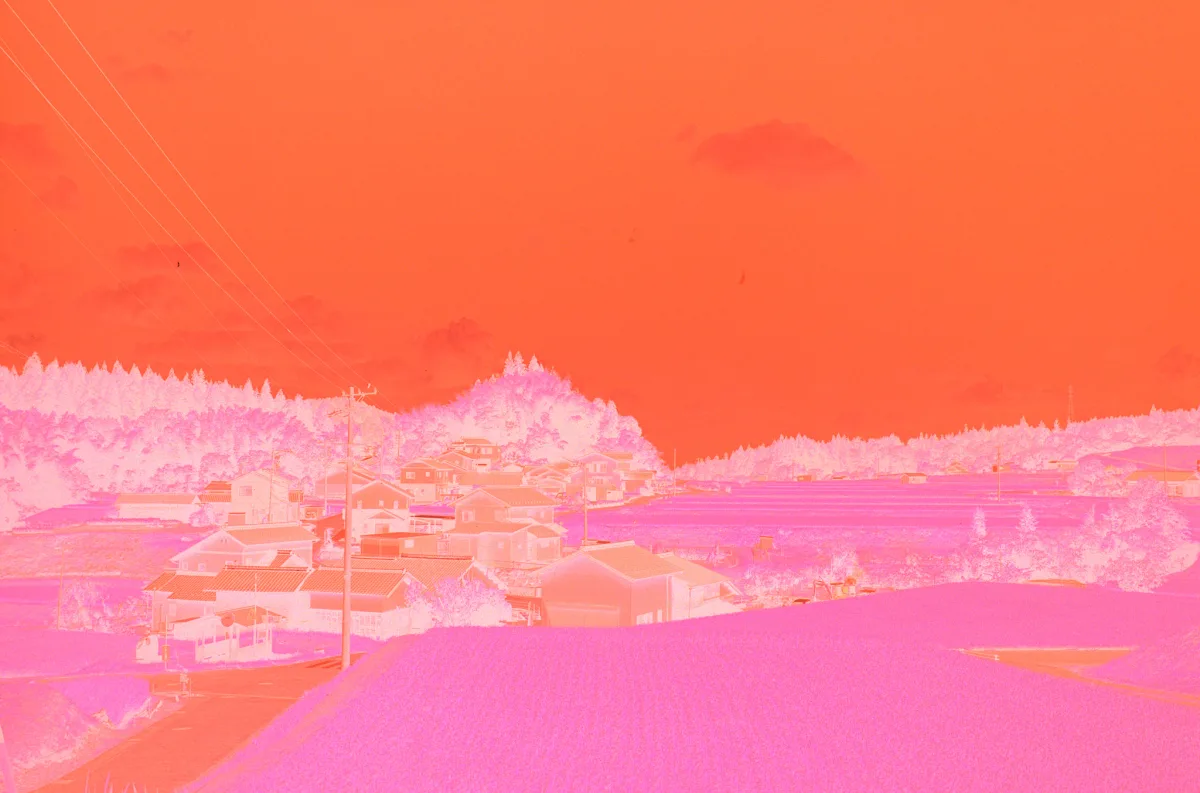
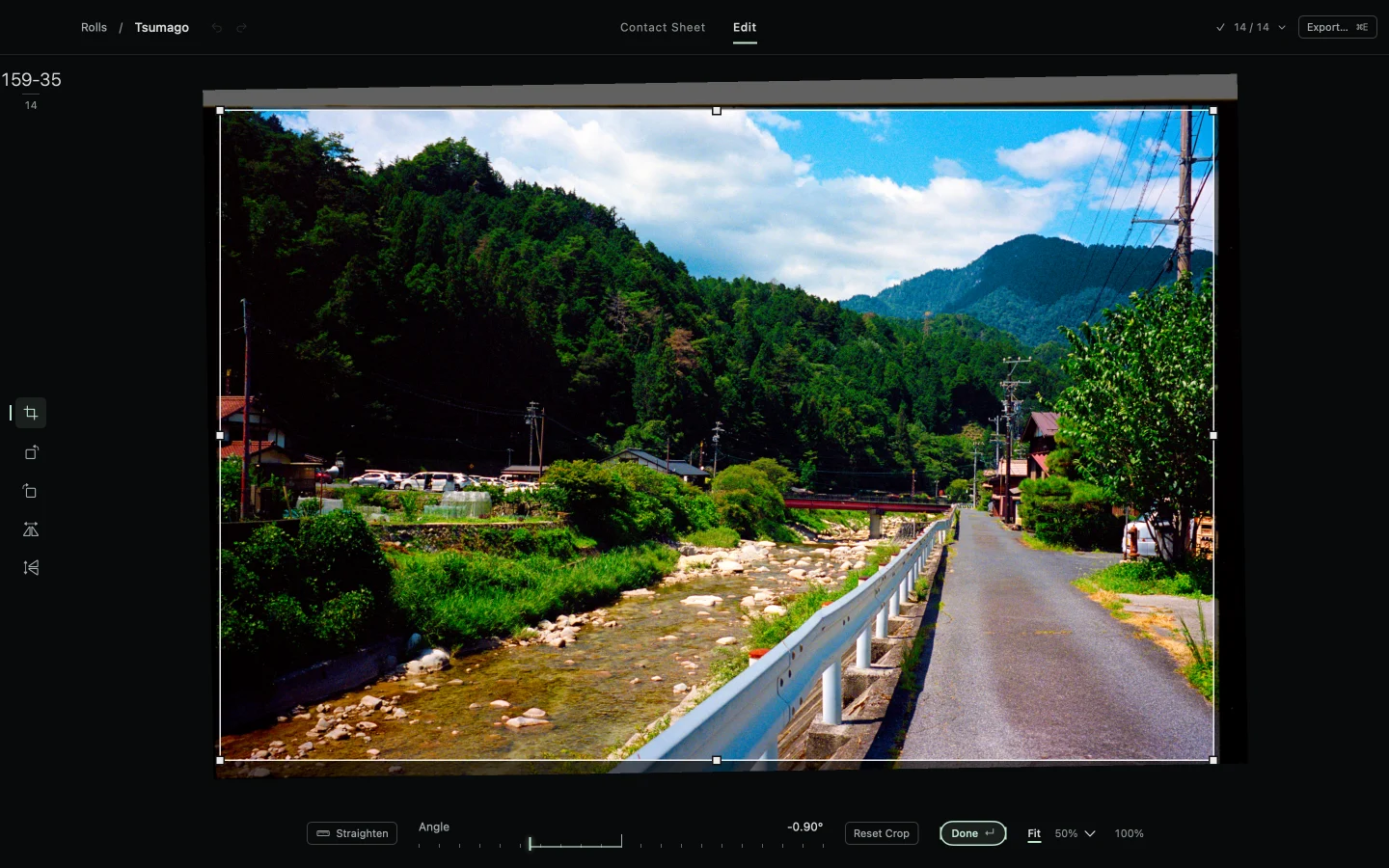
Manual cropping on every frame gets tedious fast. Auto Crop examines each frame individually to find the exposed image area and straighten small tilts. It does not assume a fixed aspect ratio, and needs the film edge to be visible in the scan. Leave Auto Crop ticked when you start converting a new roll, and it runs once across the roll afterwards. You can rerun it any time from the Contact Sheet.
- 01Four crop margin settings control how much border to keep, from slightly inside the frame to showing the film border.
- 02Any undetected edge is estimated from a nearby frame and flagged. In crop mode, drag the handles, set the angle, or draw a line to level the frame.
- 03Manually adjusted frames can be kept when Auto Crop runs again, and an entire pass can be undone in one step.
COLOR
Colour grading and reusable Looks.
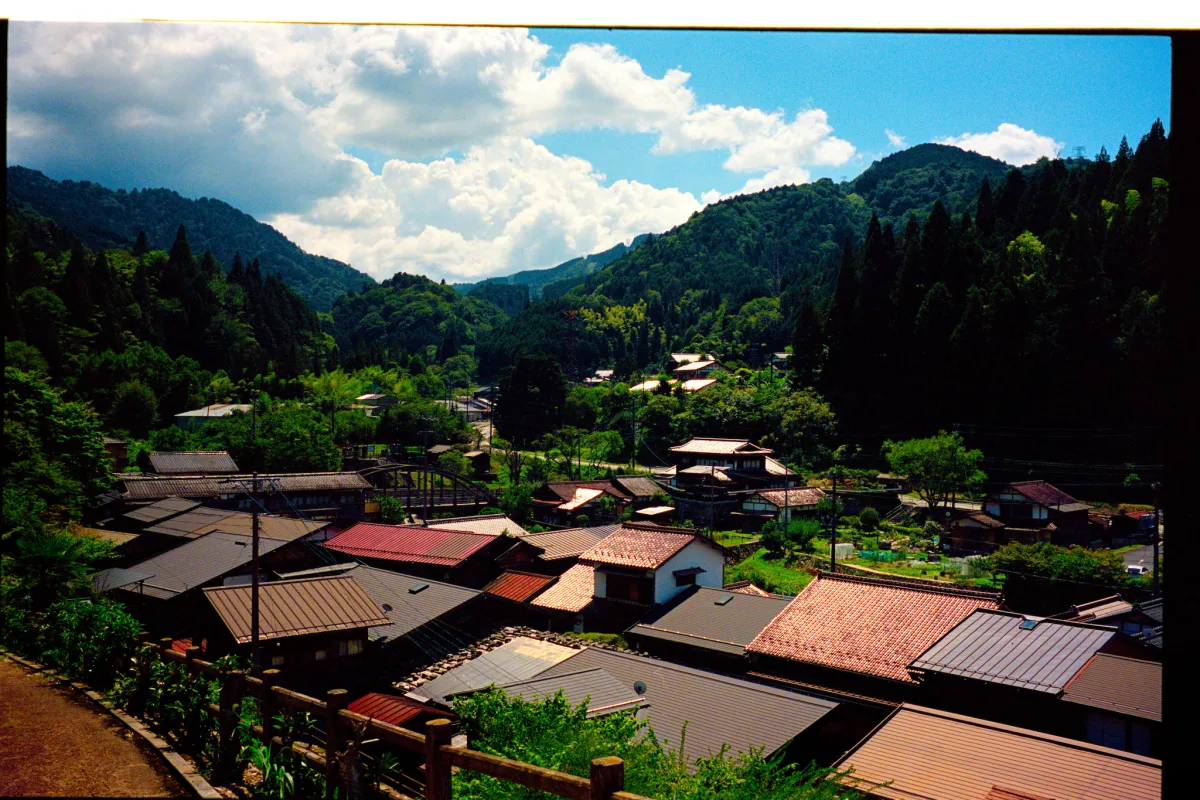
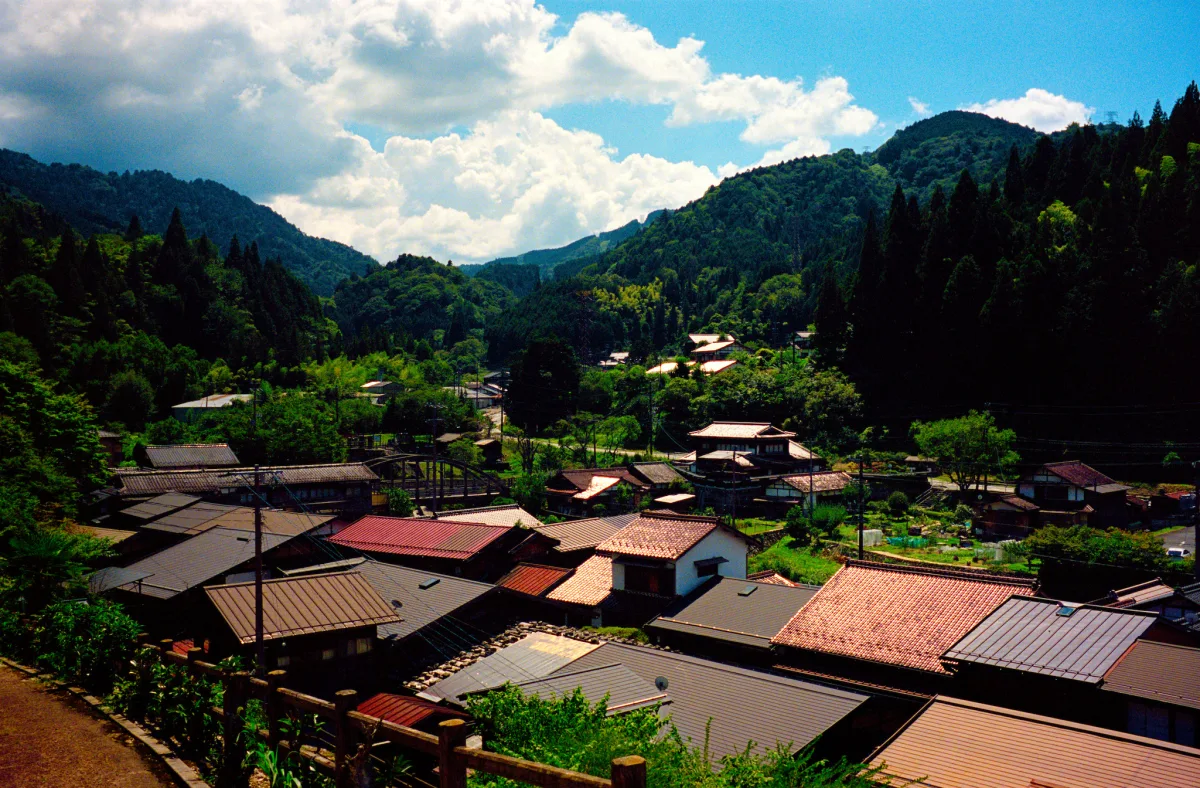
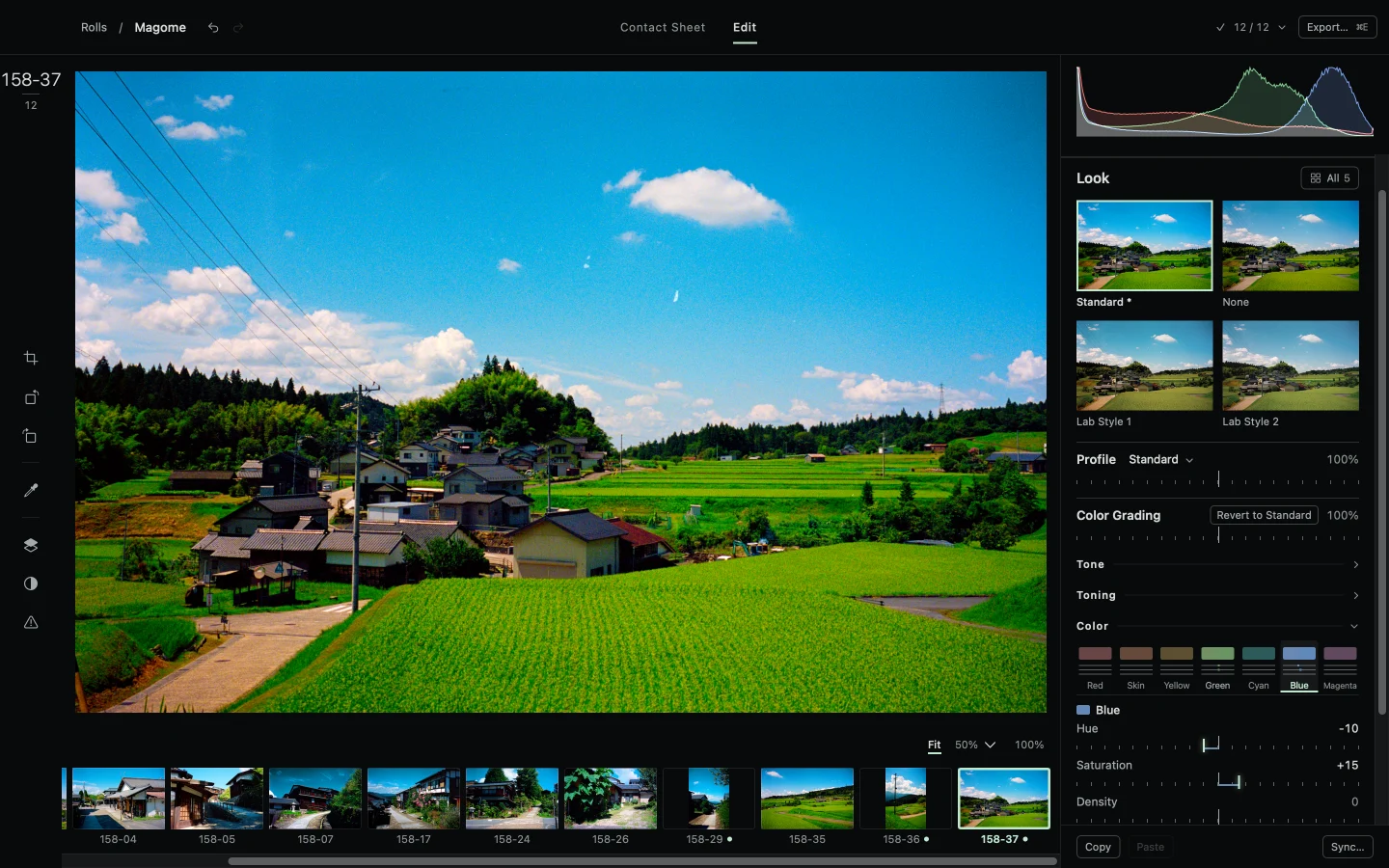
Color Grading sits on top of the neutral inversion. Tone adjusts Fade and Highlight Compression, while Color Tone shifts blue/yellow and green/magenta balance, with separate colours for shadows and highlights. Seven colour bands, including Skin, each have Hue, Saturation, and Density controls.
Presets
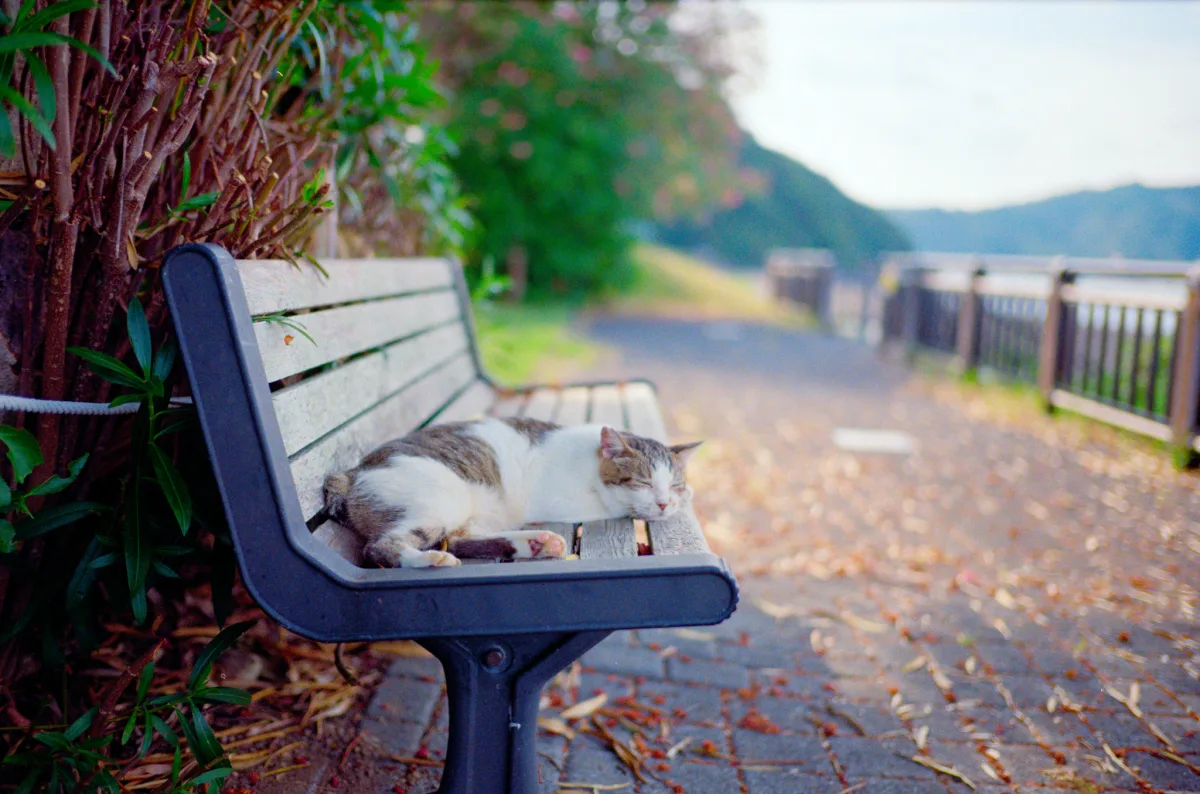
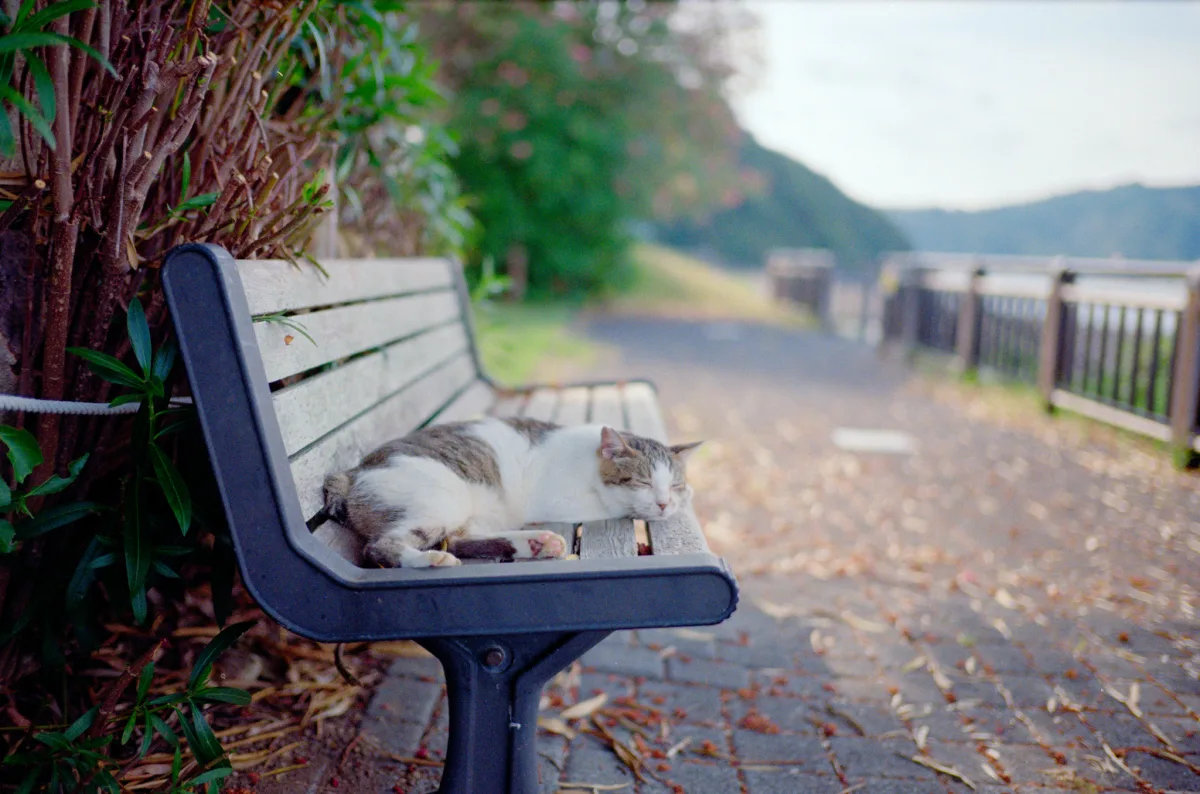
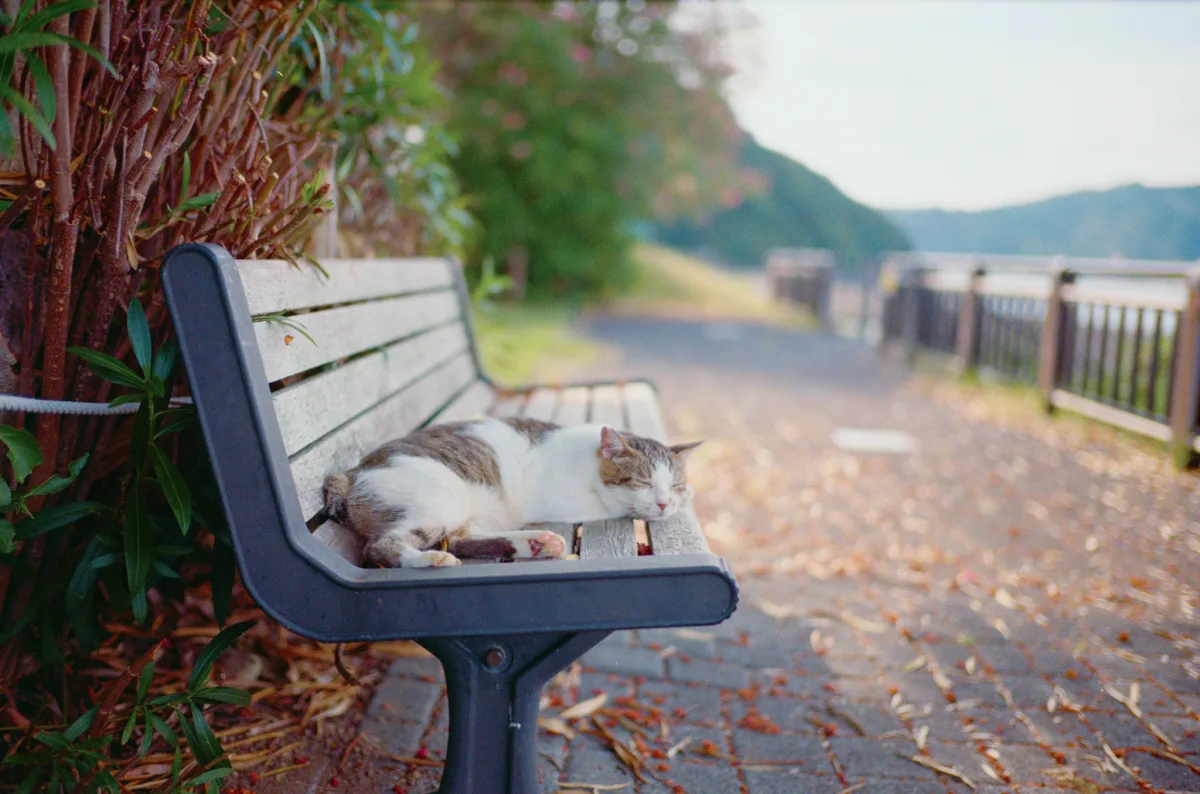
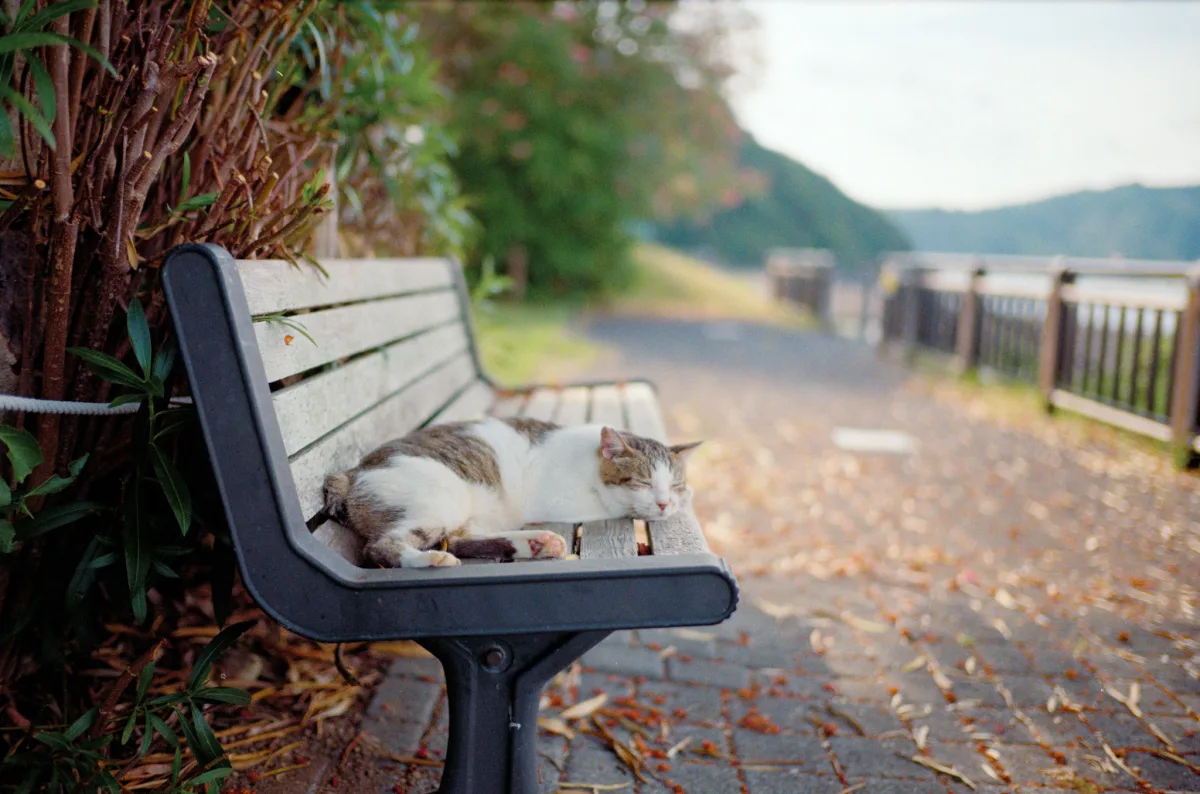
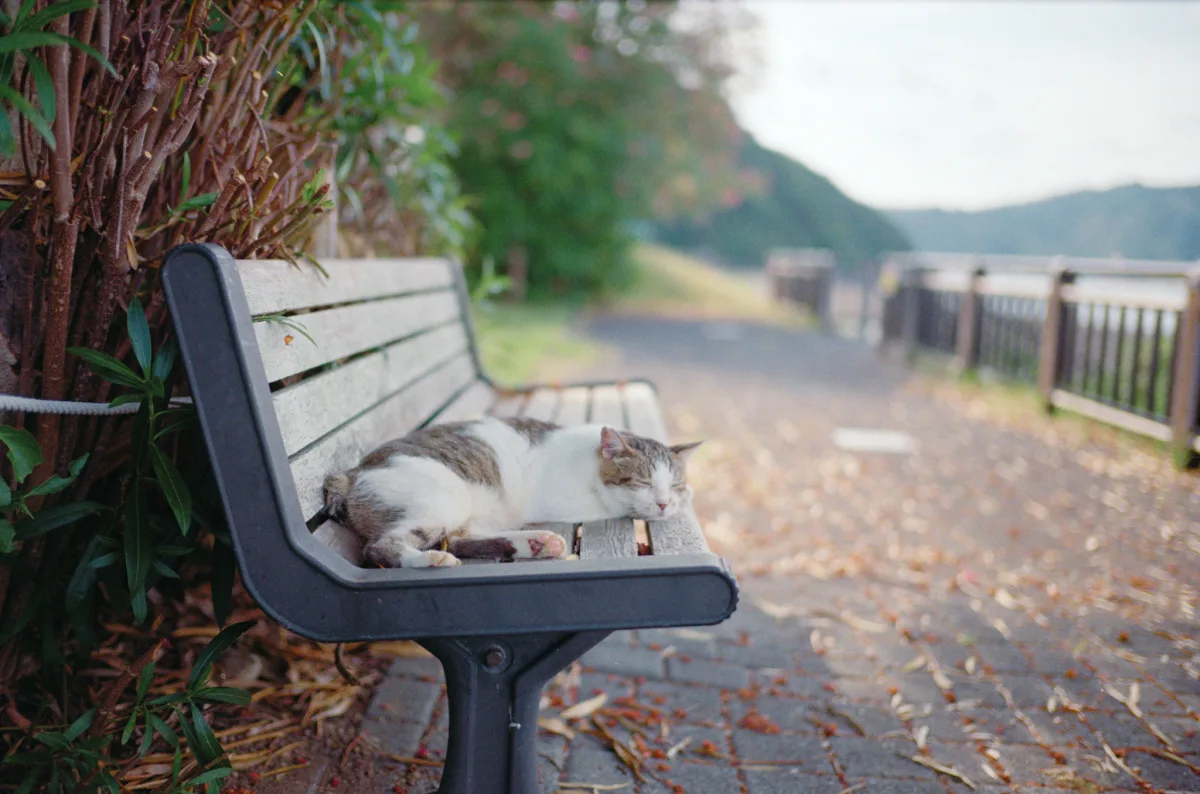
A Look combines a base for tone and saturation (Profile) with Color Grading on top, each with its own Amount. Save any grade with Save as Look… to reuse as a preset. Argent also includes built-in Looks with Amount adjustable from 0 to 200%. Compare the built-in Looks on the same frame below.
WORKFLOW
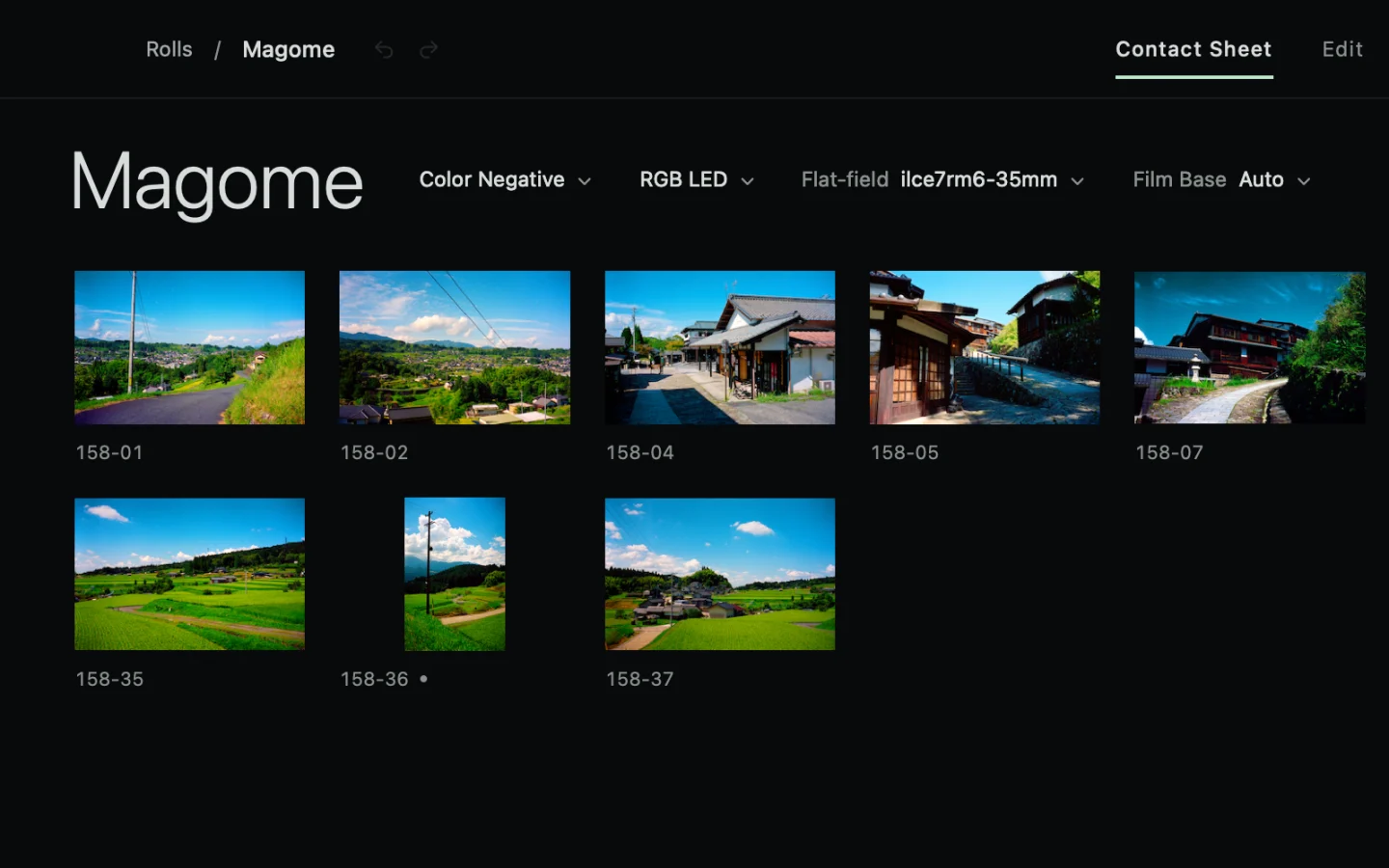
Three steps from RAW folder to export.
01
Contact Sheet
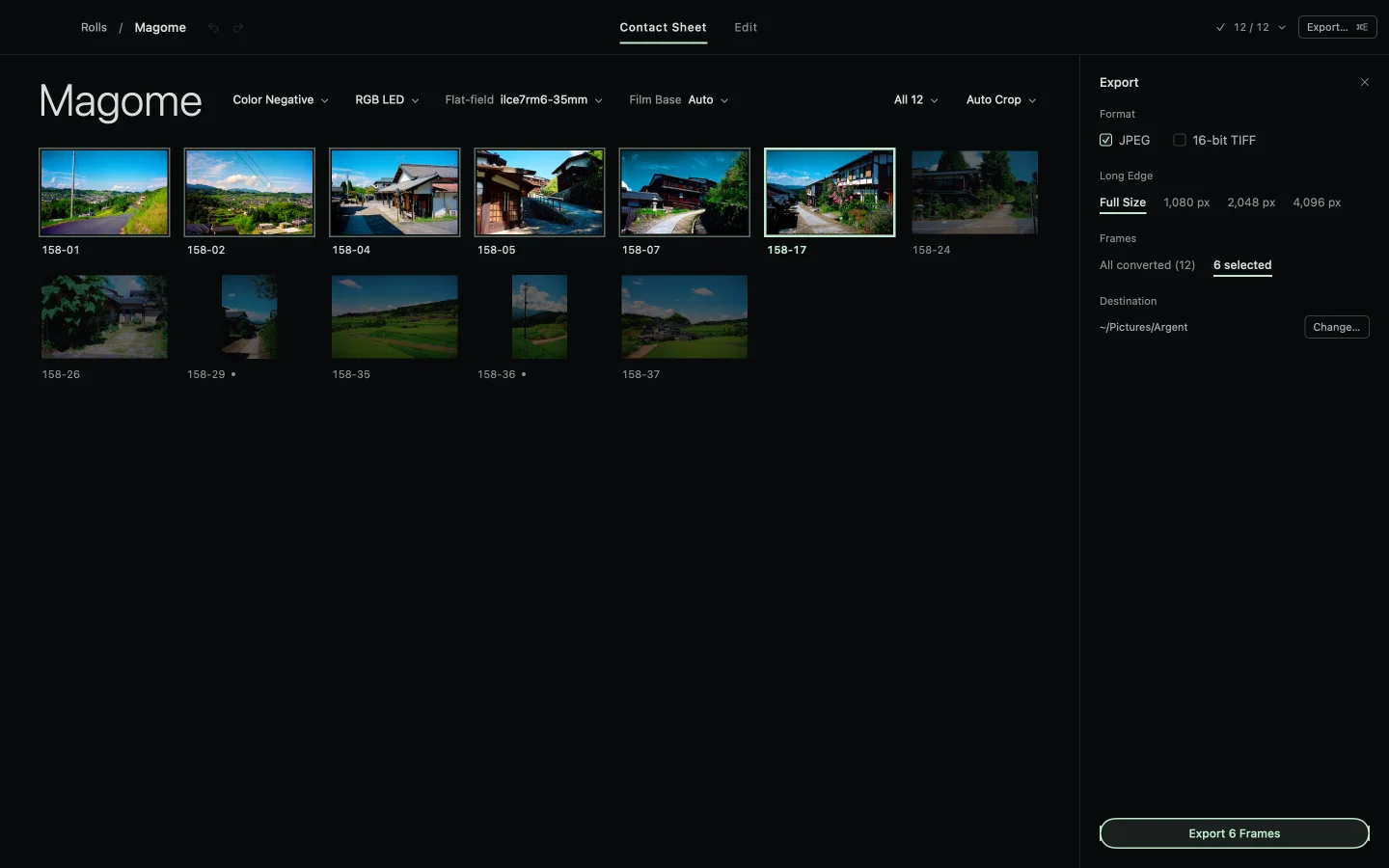
Open a folder of RAW files, select Color Negative, B&W Negative, or Creative, and choose White LED or RGB LED. Load an optional Flat-field, a single RAW shot of the light source alone, to correct uneven lighting and lens vignetting.
02
Edit
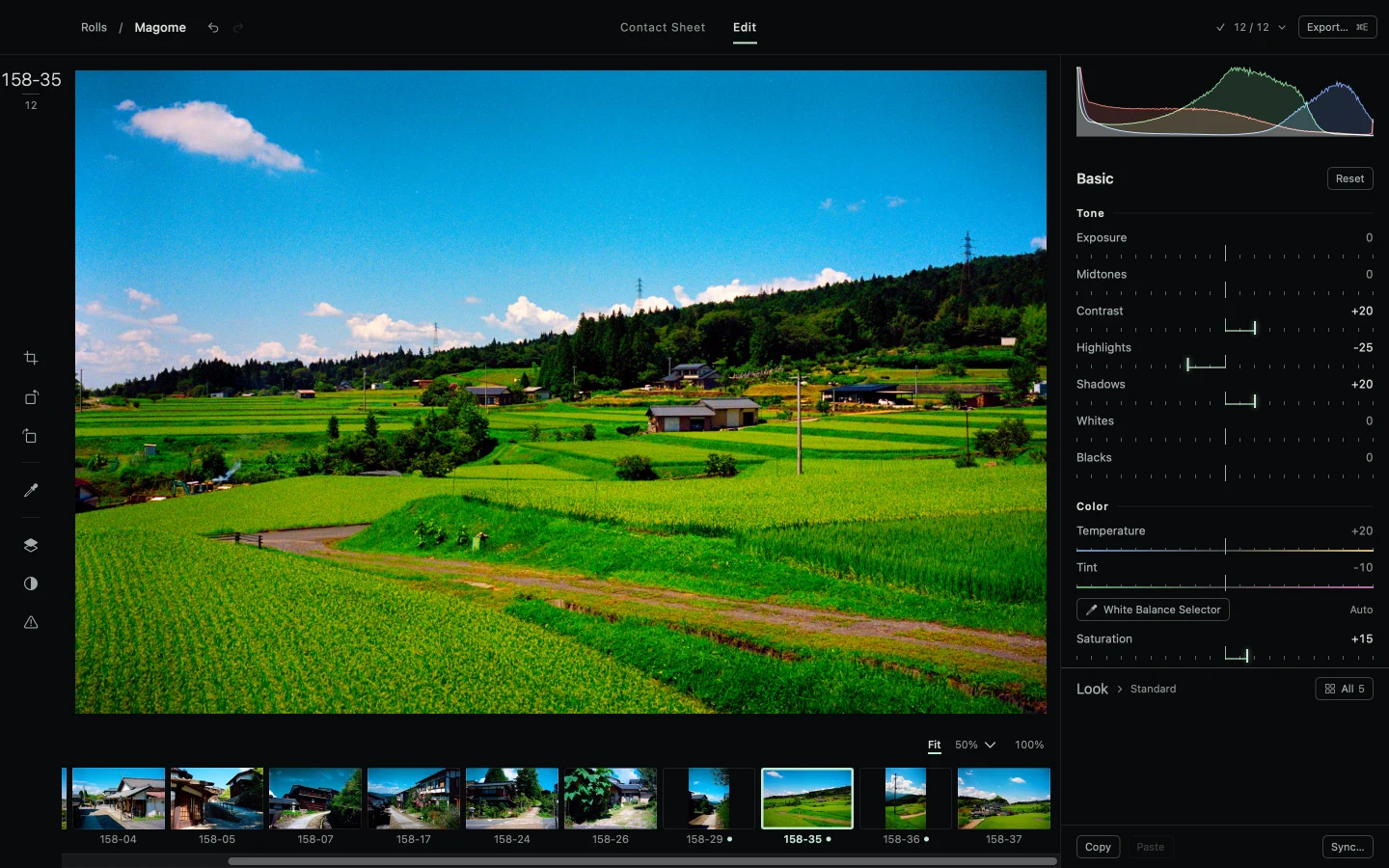
Refine individual frames with Look, Amount, and Color Grading, rotate or straighten as needed, and compare edits with Show Before. Copy and paste settings, or use Sync… to apply them to other frames in the roll.
03
Export
Save finished positives as JPEG (sRGB) for sharing, or as 16-bit TIFF for further editing in other apps. Original RAW files are never modified.
PRICING
Try it on your own rolls first. $99 once.
Download Argent and use every feature free for 7 days. If it suits your scans, one purchase covers every Mac you use and all future updates.
Launch price until December 28, 23:59 JST, taken off automatically at checkout. $99 after that.
Priced in US dollars; checkout may show local currency.
- 7-day full trial via email and 6-digit code, no card required
- No limit on the number of Macs you sign in on
- All future updates included at no extra cost
- 30-day refund, no reason needed (once per person; refunding deactivates the licence)
- Developer ID signed & notarized by Apple · direct download
Argent’s licence agreement, privacy policy, seller information and release notes are on their own pages.
ENGINE
How the inversion engine works.
When inversion and styling are mixed together, you end up fighting the software before you can grade a frame. In Argent, neutral inversion, Basic adjustments, and Look each have one job. Basic covers exposure, contrast, highlights, shadows, whites, blacks, temperature, tint, and saturation, changing nothing at zero, while Look adds style. The engine analyses each roll as a whole, separating what belongs to the film from what changes frame to frame.
01NEUTRAL INVERSION
ONCE PER ROLL
PER FRAME
-
01
Neutral inversion, then the Look
An unwanted colour cast on every frame slows editing down, so Argent aims to keep greys neutral. Set Look to None to see the ungraded inversion, or switch Looks for warmth, contrast, and saturation without re-inverting.
-
02
One roll, one Film Base
If you sample the orange mask frame by frame, it takes time and lets colour drift across the roll. When a roll opens, Argent measures the Film Base from unexposed film between frames, or lets you sample it manually if none is found. Because every frame shares that reference, colour stays consistent regardless of your camera's white balance. When a frame gives automatic white balance little to go on, Argent uses the rest of the roll as a reference.
-
03
Colour crossover: matching the three layers
Shadows can lean green or cyan while highlights shift magenta or yellow, so white balance fixes one end and throws the other off. A colour negative's three emulsion layers build density at different rates depending on film stock, development, light source, and camera, causing colour crossover after inversion. Working in optical density from the Film Base, Argent measures those differences from ordinary frames on the roll and matches all three layers' contrast. Measured once per roll without a grey card, bracketing, or film stock presets, the result applies identically to every frame. You spend less time sacrificing highlights to fix shadows, and colour stays even across the roll.
-
04
Flat-field correction
Uneven scanning light and lens vignetting become much more noticeable after inversion, showing up as colour shifts or uneven edges. Optional Flat-field correction uses one shot of the light source alone, saved by name to reuse across future rolls from the same setup.
-
05
When a frame is still off
Tricky lighting can still leave an occasional frame off balance. Frames with uncertain colour are flagged Needs Review so you can filter for them. Click a neutral area with the White Balance Selector, refine with Temperature and Tint, then copy, paste, or sync the fix to other frames.
The engine is being developed with a SONY α7R VI.
DETAILS
Specifications
- InputCamera-scanned RAW (ARW, DNG, CR2, CR3, NEF, NRW, RAF, ORF, RW2, PEF, SRW, 3FR, IIQ, ERF; linear DNG supported); X-Trans RAF and Sony ARQ (pixel shift) not supported; convert ARQ to DNG first; pixel-shift DNG opens and exports at full resolution; new cameras without colour data yet still invert with an on-screen indicator; 16-bit RGB TIFF (folder as a roll, selectable gamma)
- FilmColor Negative, B&W Negative, Creative (per roll; Creative inverts without neutralising, keeping the film's own colour); slide (reversal or positive) film not supported; confirmed with 35mm holders; automatic or manual Film Base measurement
- LightWhite LED, RGB LED (applies a colour conversion matched to that light during inversion); optional Flat-field from one RAW frame of the light source alone (once per setup) to correct uneven lighting and lens vignetting
- Auto CropRuns across the whole roll; finds each frame's image area and straightens small tilts up to ±2°; does not assume a fixed aspect ratio; needs the film edge to be visible in the scan; 4 crop margin settings per roll; can keep manually adjusted frames; one-step undo
- FramingRotate, straighten (per frame or across the roll); copy/paste, Sync…, undo/redo, Show Before
- LooksNone, Standard, Warm film, Lab Style 1, Lab Style 2; Amount 0–200%; two layers: a base for tone and saturation (Profile: Standard, Natural, Soft, Linear; Paper for B&W) and Color Grading on top; each layer has its own Amount; Color Grading: Tone (Fade, Highlight Compression), Color Tone (Blue–Yellow, Green–Magenta; separate colours for shadows and highlights), Color (Red, Skin, Yellow, Green, Cyan, Blue, Magenta: Hue, Saturation, Density); Save as Look…
- ExportJPEG (sRGB, 8-bit, quality 95, ICC profile embedded; long edge Full Size, 1,080, 2,048 or 4,096 px); 16-bit TIFF (Rec.709 primaries, D65, gamma 2.4, uncompressed, Full Size, ICC profile embedded); colour space fixed per format (no P3, Adobe RGB or ProPhoto); edits saved in an ".argent" folder next to RAW files so rolls can be reopened; original RAW files never rewritten
- LanguageEnglish, Japanese
- RequiresmacOS 15 or later, Apple silicon; standalone direct download, Developer ID signed and notarized by Apple; runs locally with no uploads
- Licence$99 one-time purchase (20% off until December 28: $79.20), all future updates included, no limit on the number of Macs; 7-day full trial starts when you start it in the app and confirm your email (not at first launch); one trial per Mac and per email, no card required; 30-day refund, no reason needed, once per person (refunding deactivates the licence)
FAQ
Questions
Does Argent need other photo software?
No. Argent runs on its own as a Mac app. All processing stays on your Mac, and photos are never uploaded.
Which files are supported?
Argent opens 14 RAW formats: ARW, DNG, CR2, CR3, NEF, NRW, RAF, ORF, RW2, PEF, SRW, 3FR, IIQ, and ERF. Linear DNG files are supported. RAF files from X-Trans sensors are not supported. Sony ARQ (pixel shift) files are not supported, so convert them to DNG first. A pixel-shift DNG opens and exports at full resolution. For new cameras without colour data yet, Argent still inverts the files and shows an on-screen indicator. Argent also opens a folder of 16-bit RGB TIFF files as a roll, where you choose the gamma.
Does the camera's white balance setting matter when scanning?
No. Argent measures the Film Base (orange mask) automatically from the roll and sets white balance from it. You can also sample a spot manually if needed.
How do you set the scanning light and correct uneven lighting?
Choose White LED or RGB LED to match your scanning light. Argent applies a colour conversion matched to that light during inversion. To correct uneven lighting and lens vignetting, load one RAW frame as a Flat-field, shot once per setup. Shoot it with the film removed, using the same equipment, aperture, and magnification, exposed so nothing clips. It does not need to match the negatives' exposure.
Which film types are supported?
For each roll, choose Color Negative, B&W Negative, or Creative. Slide (reversal or positive) film is not supported. Argent is confirmed with 35mm holders. Creative inverts without neutralising colour, keeping the film's own colour. It uses no automatic white balance, does not match layer contrast, and leaves the Look off by default.
Are original RAW files modified, and can I reopen a roll later?
No. Original RAW files are never rewritten. Edits are saved in an ".argent" folder next to the RAW files, so you can reopen a roll later and keep editing. That folder stores roll settings plus per-frame Basic, Look, crop, and orientation. Finished positives are exported as new JPEG (sRGB) or 16-bit TIFF files.
How do the 7-day trial, licence, and refunds work?
Start the trial in the app and confirm your email with a 6-digit code. The 7-day trial starts then, not at first launch, with every feature unlocked and no card required. One trial is available per Mac and per email. After the trial, Argent is $99 one-time in US dollars (checkout may show local currency), with all future updates included. There is no limit on the number of Macs you can use. Refunds are available within 30 days with no reason needed, once per person; refunding deactivates the licence.
Which Macs are supported, and how is Argent distributed?
Argent supports Apple silicon Macs running macOS 15 or later. It is a direct download from this site, Developer ID signed and notarized by Apple.
Guide: Camera scanning setup: gear, alignment, focus and exposure, step by step
Made by Motoki Endo at Bedroom Development. Who makes them